Line Management
The Line Management module allows you to view details and change settings for any line in your plant.
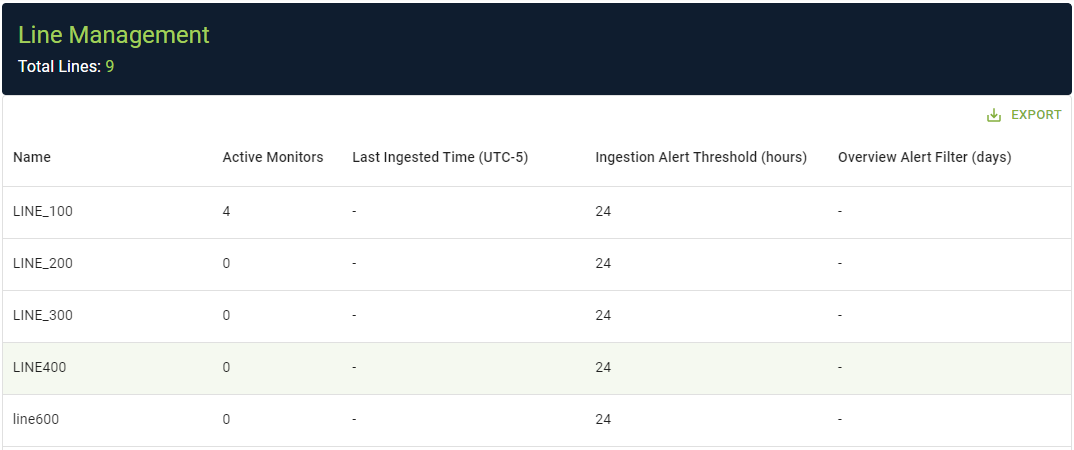
To view the Line Management screen
(If required) Select a plant.
From the Navigation menu, click SYSTEM SETTINGS .
The Settings menu appears.
Click Data Management | Line Management.
The Line Management screen appears.
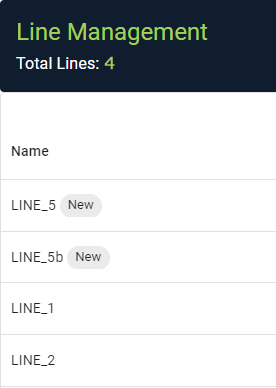
 Any lines that have been added within the past week will be highlighted as 'New'.
To deactivate a line
(If required) Select a plant.
From the Navigation menu, click SYSTEM SETTINGS .
The Settings menu appears.
Click Data Management | Line Management.
The Line Management screen appears.
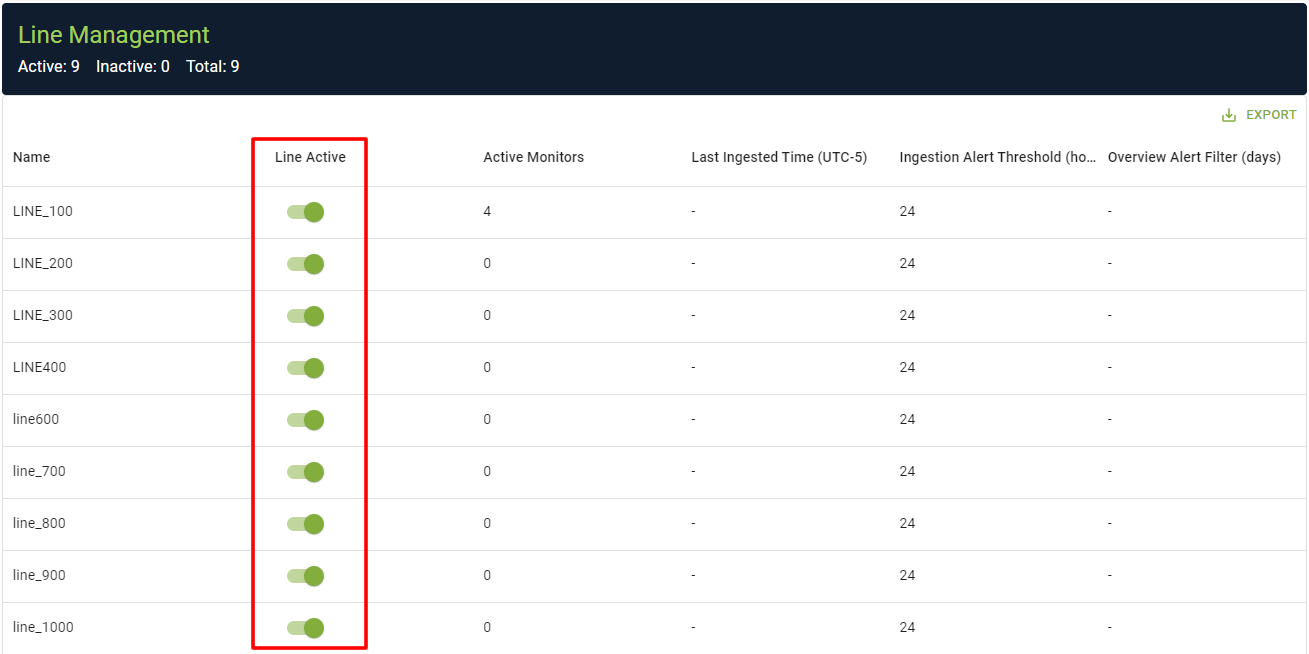
For the line you wish to modify, toggle the Line Active column off.
A dialog box appears.
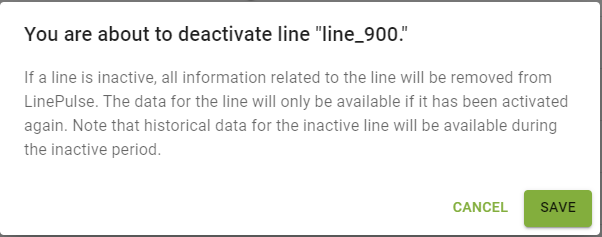
Click SAVE.
The dialog box closes.
You will no longer see the selected line in any LinePulse screen, other than Line Management.
To reactivate a line
(If required) Select a plant.
From the Navigation menu, click SYSTEM SETTINGS .
The Settings menu appears.
Click Data Management | Line Management.
The Line Management screen appears.
For the line you wish to reactivate, toggle the Line Active column on.
A dialog box appears.
Click SAVE.
The dialog box closes.
LinePulse restores the line. It will appear in all relevant screens.
Reactivating the line will restore it throughout LinePulse, with no loss of data from the period when it was disabled.
To adjust a line's Ingestion Threshold value
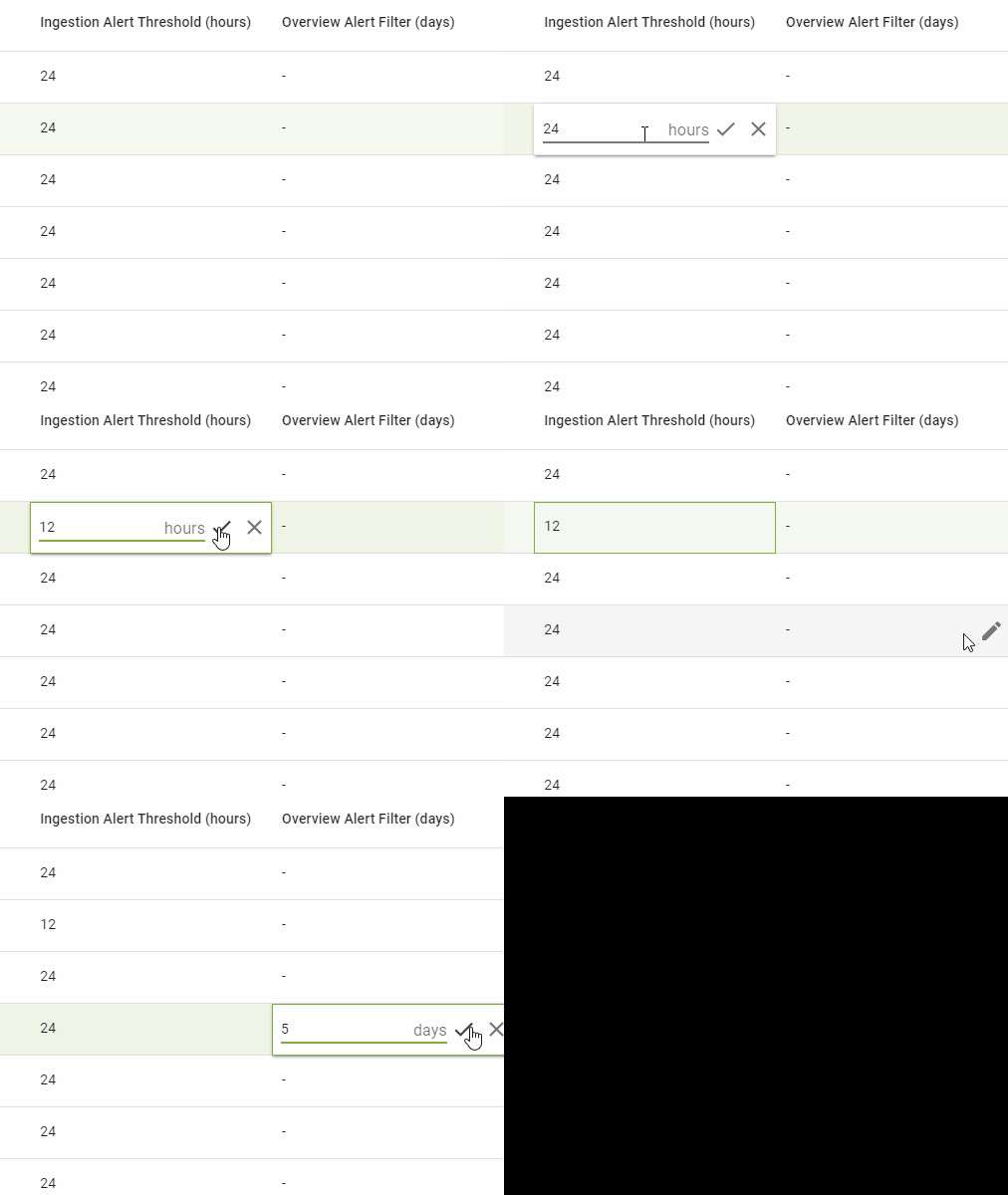
LinePulse displays an alert in both the Overview Module and in Microsoft Teams when data ingestion stops for a line. Enter a Line Ingestion Threshold value to specify how many hours must pass without ingestion before an alert is triggered.
(If required) Select a plant.
From the Navigation menu, click SYSTEM SETTINGS .
The Settings menu appears.
Click Data Management | Line Management.
The Line Management screen appears.
For the line you wish to modify, click  in the Ingestion Alert Threshold (hours) column.
A submenu appears.
Enter a new value.
Click the checkmark.
LinePulse closes the submenu and saves your changes.
To adjust a line's Overview Alert Filter value
Enter an Overview Alert Filter value to prevent line alerts older than that value from appearing in the Overview Module.
(If required) Select a plant.
From the Navigation menu, click SYSTEM SETTINGS .
The Settings menu appears.
Click Data Management | Line Management.
The Line Management screen appears.
For the line you wish to modify, click in the Overview Alert Filter (days) column.
A submenu appears.
Enter a new Overview Alert Filter value.
'Overview Alert Filter' must be an integer between 1 and 90. This value will not affect Alerts or Monitor History.
Click the checkmark.
LinePulse closes the submenu and saves your changes.
To export a Line Management report
(If required) Select a plant.
From the Navigation menu, click SYSTEM SETTINGS .
The Settings menu appears.
Click Data Management | Line Management.
The Line Management screen appears.
Click EXPORT.
A submenu appears.
Click Download as CSV.
LinePulse saves the exported Line Management report file to your default download folder.
Last modified: May 10, 2024