Settings | Anomaly Monitors
Use the Anomaly Monitors settings to activate, delete or edit SVD and MVD Monitors.
Configuring SVD Monitors
See Working with Tables for tips on sorting, filtering and resizing LinePulse tables.
To activate/deactivate an SVD monitor
From the Navigation menu, click
System Settings.LinePulse displays the Settings menu.
Click Anomaly Monitors →
Single Variate.LinePulse displays the SVD Monitors worklist.
(If required) Select a Line.
Select the Active toggle for the desired SVD monitor.
LinePulse activates or deactivates the SVD monitor according to your selection.
To delete an SVD monitor
From the Navigation menu, click .
LinePulse displays the Settings menu.
Click Anomaly Monitors →
Single Variate.LinePulse displays the SVD Monitors worklist.
(If required) Select a Line.
Click
 for the desired SVD monitor.
LinePulse displays a confirmation dialog box.
Click
OK.LinePulse deletes the selected SVD monitor.
Editing SVD Monitors
To open an SVD monitor for editing
From the Navigation menu, click .
LinePulse displays the Settings menu.
Click Anomaly Monitors →
Single Variate.LinePulse displays the SVD Monitors worklist.
(If required) Select a Line.
Click
EDITfor the desired SVD monitor.LinePulse displays the SVD Monitor Details dialog box.
(Optional) Edit the Monitor Name.
(Optional) Edit the Frequency.
(Optional) Select a new Breach Threshold.
This selects the minimum severity required for a breach: Low, Medium, or High. It does not change the numerical severity matrix. See SVD anomaly severity for the thresholds and examples.
Make any additional required changes to the tabbed sections.
Click
SAVE.LinePulse saves your changes.
To revert the Monitor Name to its default value, click DEFAULT.
Use the SIGNALS, DATA FILTERS or ALERT RULES tabs to switch between sections. See the following tasks to view details specific to each of these tabs.
To edit SVD monitor data filters
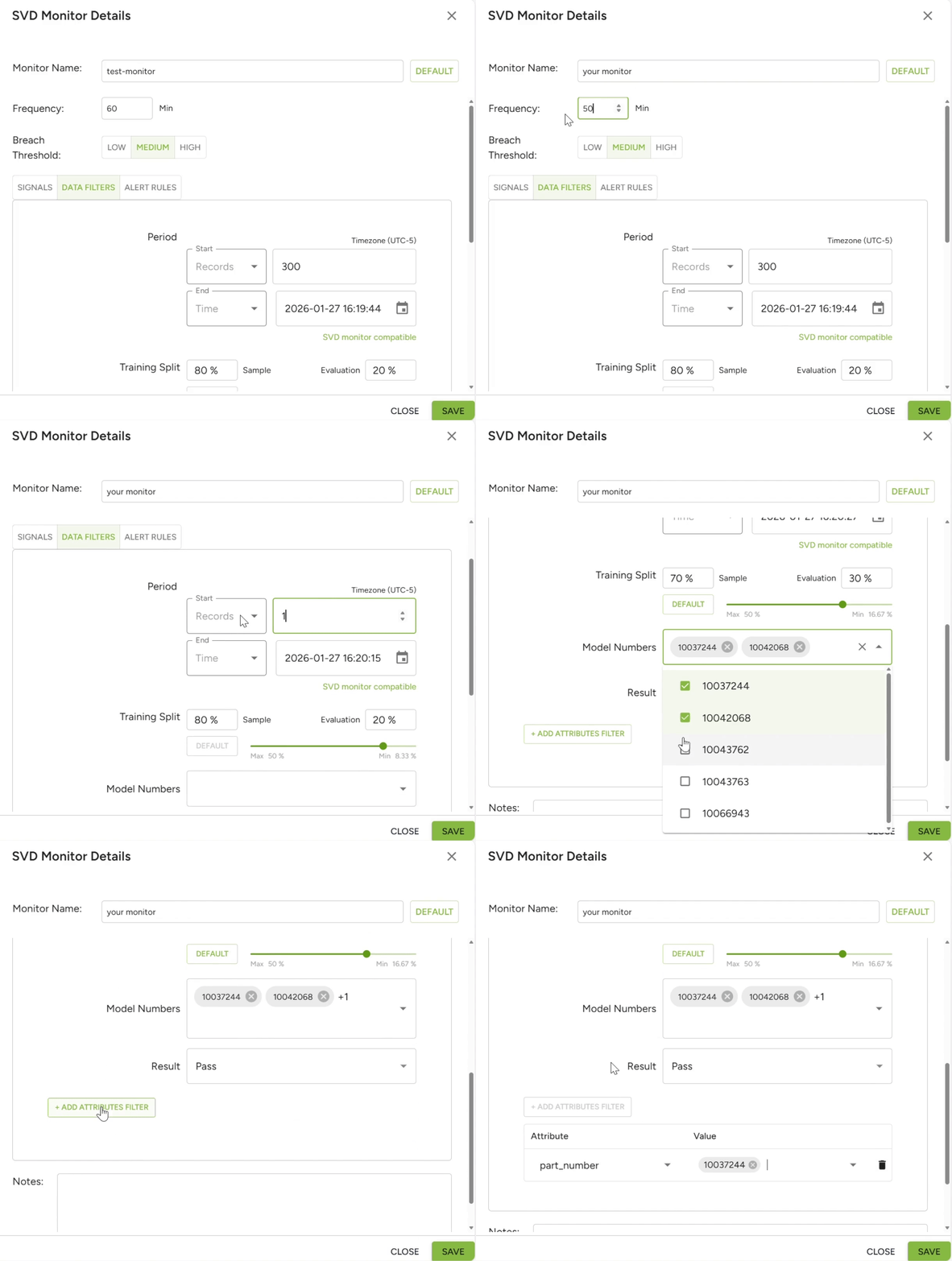
Click
DATA FILTERS.LinePulse displays the Data Filters tab.
(As required) Adjust filter values.
Click
SAVE.LinePulse saves your changes.
See Working with SVD Monitors for more information on SVD monitor data fields.
To edit an SVD monitor's signal
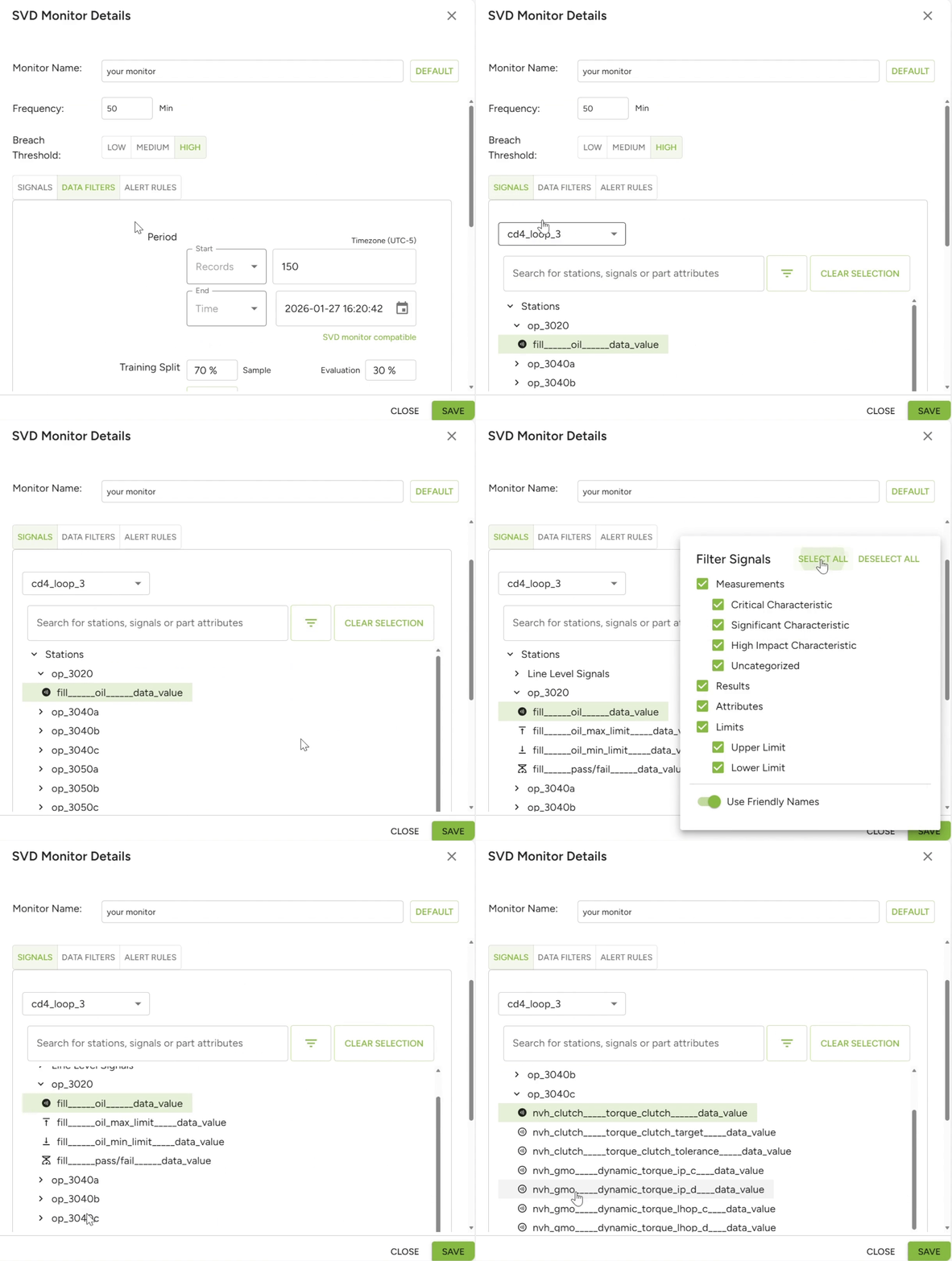
Click
Signal.LinePulse displays the Signals tab.
(If required) Select a Line.
Select a signal.
Click
SAVE.LinePulse saves your changes.
See Working with SVD Queries for more information/tips on how to select a signal for an SVD monitor.
To edit SVD monitor alert rules
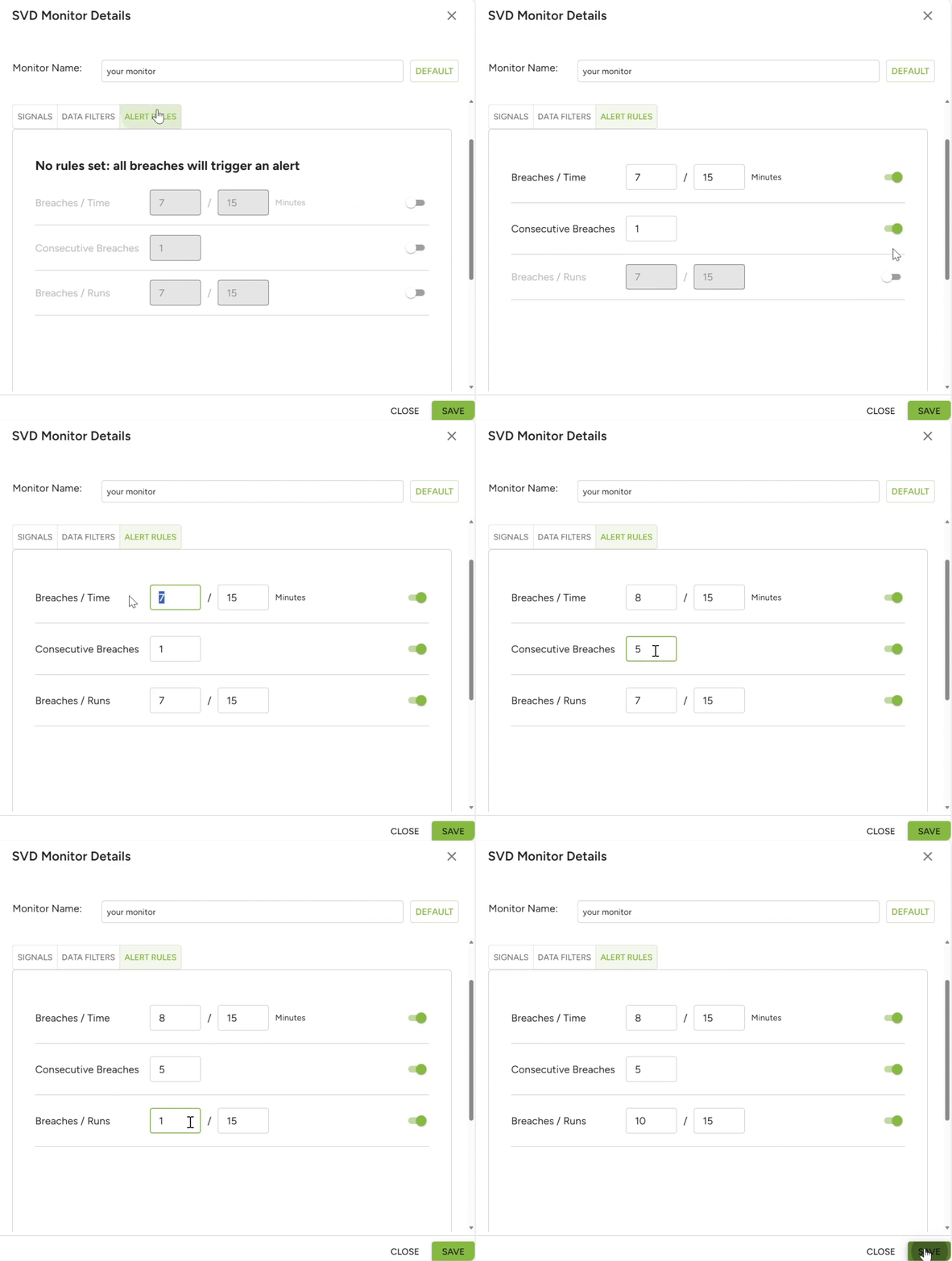
Click
ALERT RULES.LinePulse displays the Alert Rules tab.
Click the toggle button to enable any rules you wish to include.
(As required) Enter new values in the enabled rules.
Click
SAVE.LinePulse saves your changes and closes the SVD Monitor Details dialog box.
By default, all rules are disabled and LinePulse will display an alert for any breach.
Configuring MVD Monitors
To activate/deactivate an MVD monitor
From the Navigation menu, click
System Settings.LinePulse displays the Settings menu.
Click Anomaly Monitors →
Multi Variate.LinePulse displays the MVD Monitors worklist.
(If required) Select a Line.
Select the Active toggle for the desired MVD monitor.
LinePulse activates or deactivates the MVD monitor according to your selection.
To delete an MVD monitor
From the Navigation menu, click .
LinePulse displays the Settings menu.
Click Anomaly Monitors →
Multi Variate.LinePulse displays the MVD Monitors worklist.
(If required) Select a Line.
Click
for the desired MVD monitor.LinePulse displays a confirmation dialog box.
Click
OK.LinePulse deletes the selected MVD monitor.
Editing MVD Monitors
To open an MVD monitor for editing
From the Navigation menu, click .
LinePulse displays the Settings menu.
Click Anomaly Monitors →
Multi Variate.LinePulse displays the MVD Monitors worklist.
(If required) Select a Line.
Click
EDITfor the desired MVD monitor.LinePulse displays the MVD Monitor Details dialog box.
(Optional) Edit the Monitor Name.
(Optional) Edit the Frequency.
(Optional) Select a new Breach Threshold.
This selects the minimum severity required for a breach: Low, Medium, or High. It does not change the numerical severity matrix. See MVD anomaly severity for the thresholds and examples.
Make any additional required changes to the tabbed sections.
Click
SAVE.LinePulse saves your changes.
To revert the Monitor Name to its default value, click DEFAULT.
Use the SIGNALS, DATA FILTERS or ALERT RULES tabs to switch between sections. See the following tasks to view details specific to each of these tabs.
To edit MVD monitor data filters
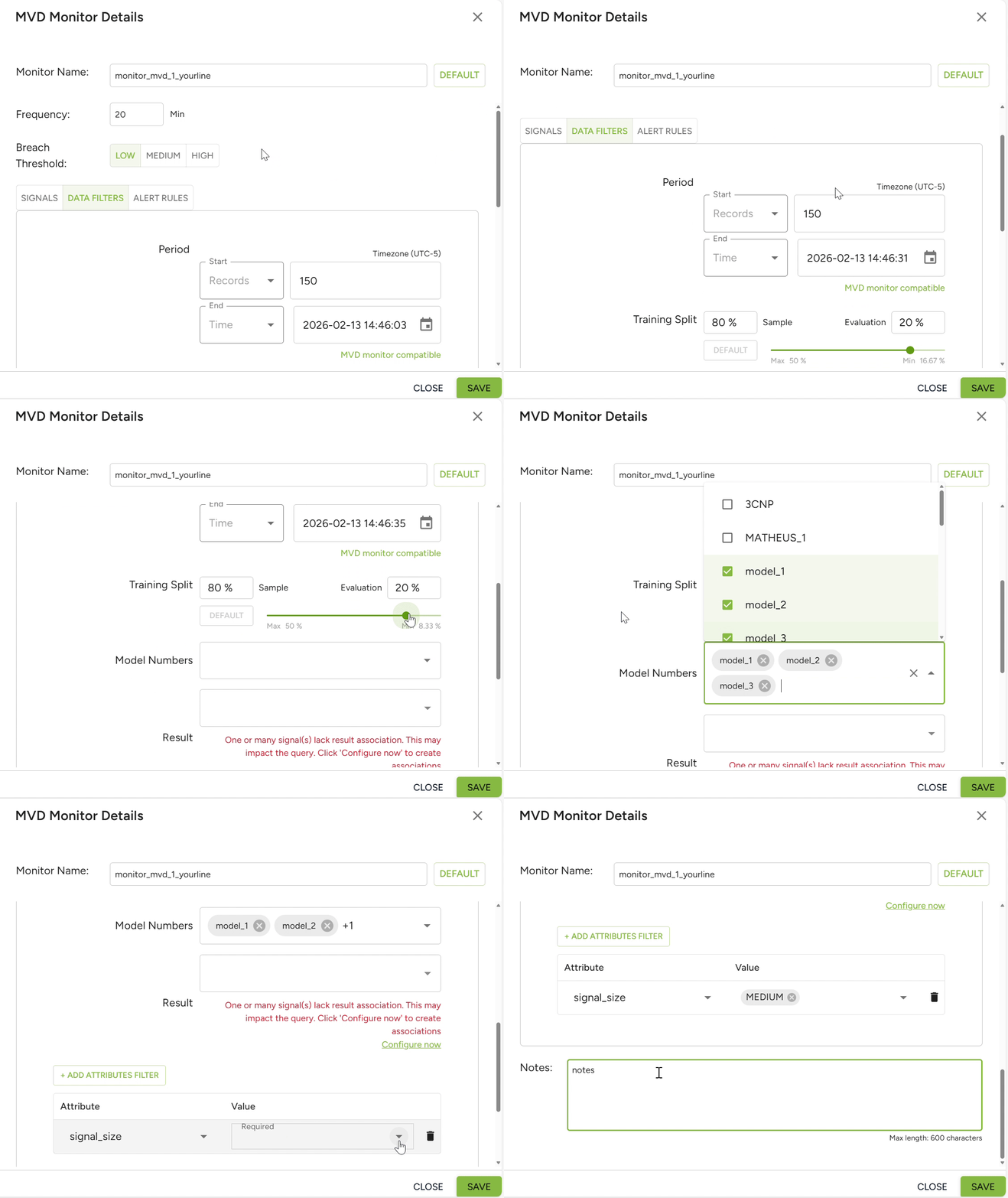
Click
DATA FILTERS.LinePulse displays the Data Filters tab.
(As required) Adjust filter values.
Click
SAVE.LinePulse saves your changes.
See Working with MVD Monitors for more information/tips on how to configure MVD monitor data filters.
To edit an MVD monitor's signals
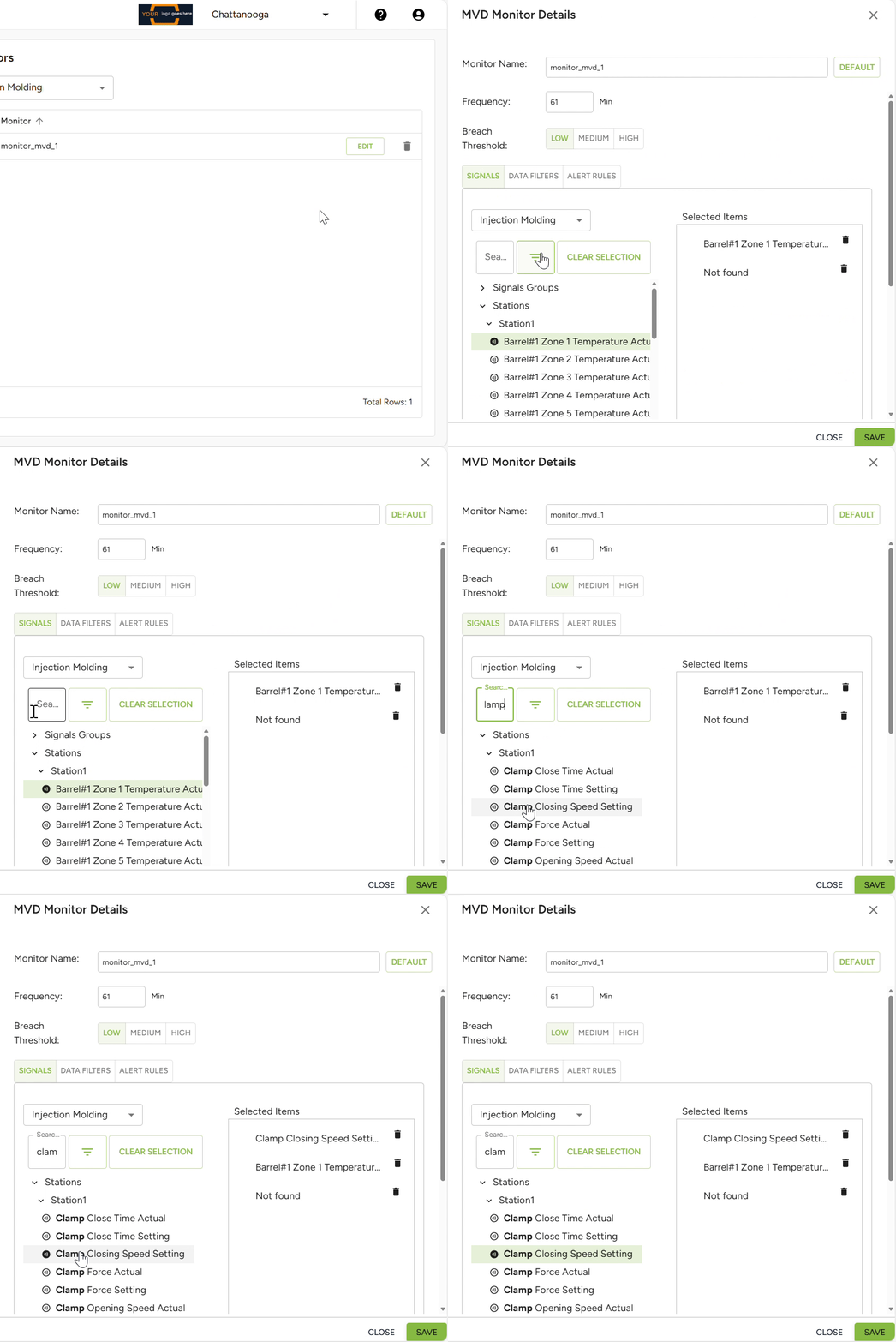
Click
Signal.LinePulse displays the Signals tab.
(If required) Select a Line.
Select two or more signals.
Click
SAVE.LinePulse saves your changes.
See Working with MVD Monitors for more information/tips on how to select signals for an MVD monitor.
To edit MVD monitor alert rules
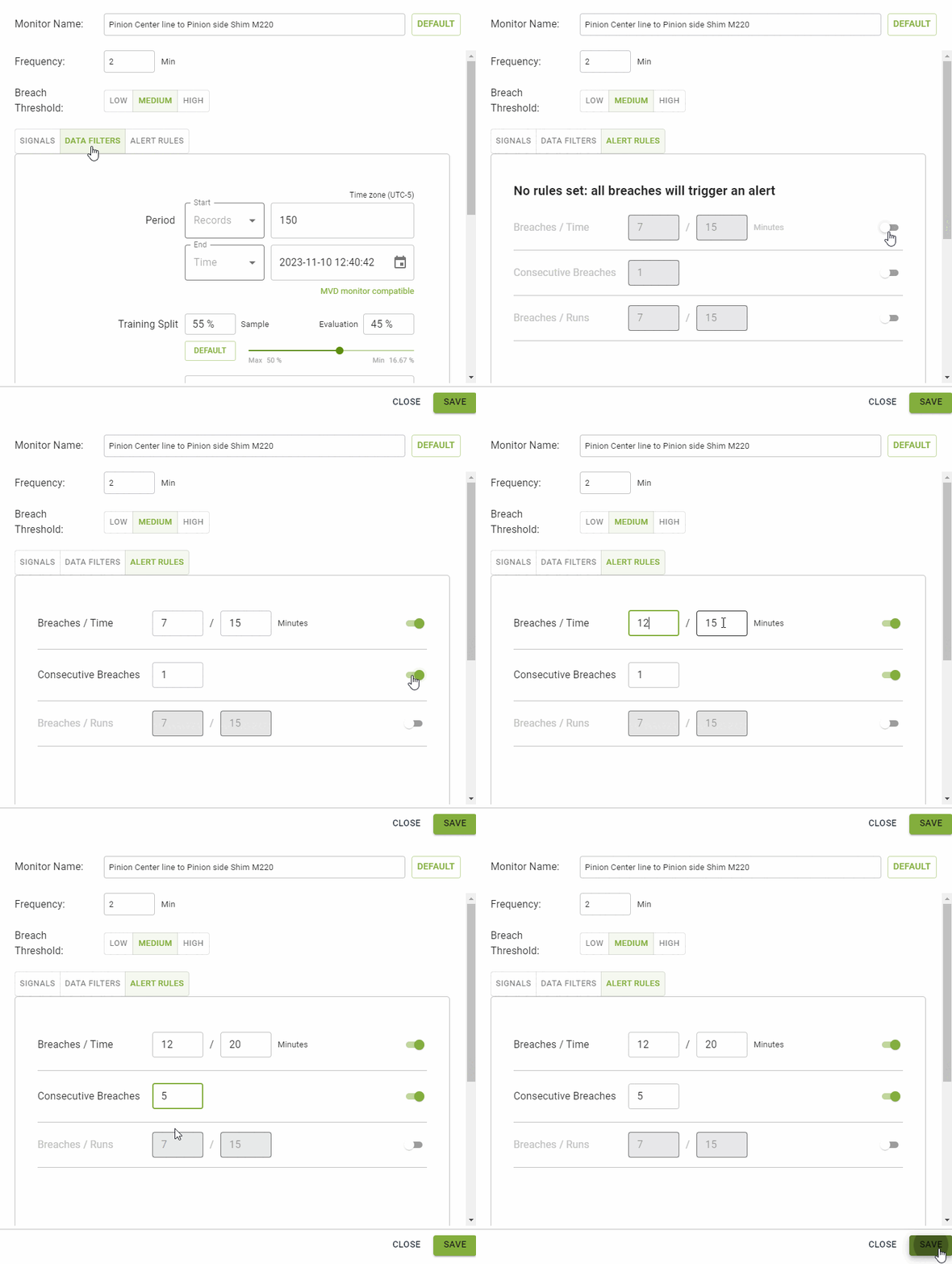
Click
ALERT RULES.LinePulse displays the Alert Rules tab.
Click the toggle button to enable any rules you wish to include.
(As required) Enter new values in the enabled rules.
Click
SAVE.LinePulse saves your changes and closes the MVD Monitor Details dialog box.
By default, all rules are disabled and LinePulse will display an alert for any breach.