Data Sources (Admins Only)
Configuring Data Sources: Intake Mapping
You have control over what your organization considers a data source. Each data source represents a unique location from which LinePulse receives data. Multiple machines can be designated as a single data source. Likewise, multiple data creators can output data to a single LinePulse data source. Alternatively, individual data sources can be configured for each data creator.
Data sources are added automatically by LinePulse. If you need to add a new data source, contact Customer Success for assistance.
To delete a data source
(If required) Select a Plant.
From the Navigation menu, click .
The Settings menu appears.
Click Data Management →
Data Sources.The Data Sources table appears.
In the Data Sources list, click
 for the data source you wish to delete.
A confirmation dialog box appears.
Click
OK.LinePulse deletes the selected data source.
Configuring Data Sources: Insight Mapping
Insight mapping classifies the data fields identified by the intake mapping process. LinePulse uses various groups to help users quickly sort their data into the Acerta business schema, a universal format for organizing manufacturing IoT data for use by LinePulse.
By selecting hierarchical data classifications, you create a data structure that LinePulse uses to provide meaningful insights based on the type of data provided. The resultant classifications are used by various LinePulse modules—such as Anomaly Detection and Cap Metrics—to properly interpret and filter results.
LinePulse uses nine base categories for insight mapping:
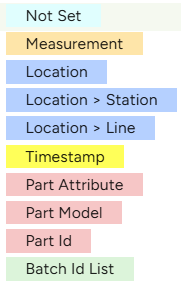
To configure insight mapping for a data source
You must first configure intake mapping for a data source before you can configure insight mapping.
(If required) Select a Plant.
From the Navigation menu, click .
The Settings menu appears.
Click Data Management →
Data Sources.The Data Sources table appears.
Click
 for the data source you wish to configure.
The Insight Mapping screen appears, displaying all of the entries previously configured via intake mapping under the Original Name heading.
For each entry, click
 .
A submenu appears.
Select a Data Classification.
LinePulse updates the Data Classification list to reflect your choice. As you continue to make selections, LinePulse automatically builds a signal by organizing the data into hierarchies.
Repeat the previous two steps as required.
Once you are sure you have all entries assigned correctly, click
Save Configuration.LinePulse displays a dialog box to confirm that your changes were saved correctly.
Until you configure Data Classification in the next step, LinePulse assigns each entry a value of 'Not Set'.
You can reorder entries by dragging and dropping them to a new location.
Make sure all entries are configured correctly before saving—while an incorrectly mapped data source can be corrected, previously collected data will not be saved in the same format as data collected after the correction.
Insight Mapping Requirements and Limitations
- The required fields in insight mapping are
Timestamp,partId,partModel,Location->Line,Location->Station, and at least one selection from either measurements or part attributes. - Insight mapping changes are forward-looking only. Older data that has already been ingested will not be picked up automatically after the mapping is changed.
- Part attributes selected in insight mapping are global to the line, not to a specific station.
- Station-related part attributes can be configured later in Signal Management by adjusting measurement signals.
Batch Id Listcan only be selected in insight mapping and cannot be configured later in Signal Management.
If your insight mapping configuration was saved incorrectly, please contact your Acerta Customer Success team using the Acerta LinePulse Support page.