Settings | Capability Metrics
Configuring Alerts
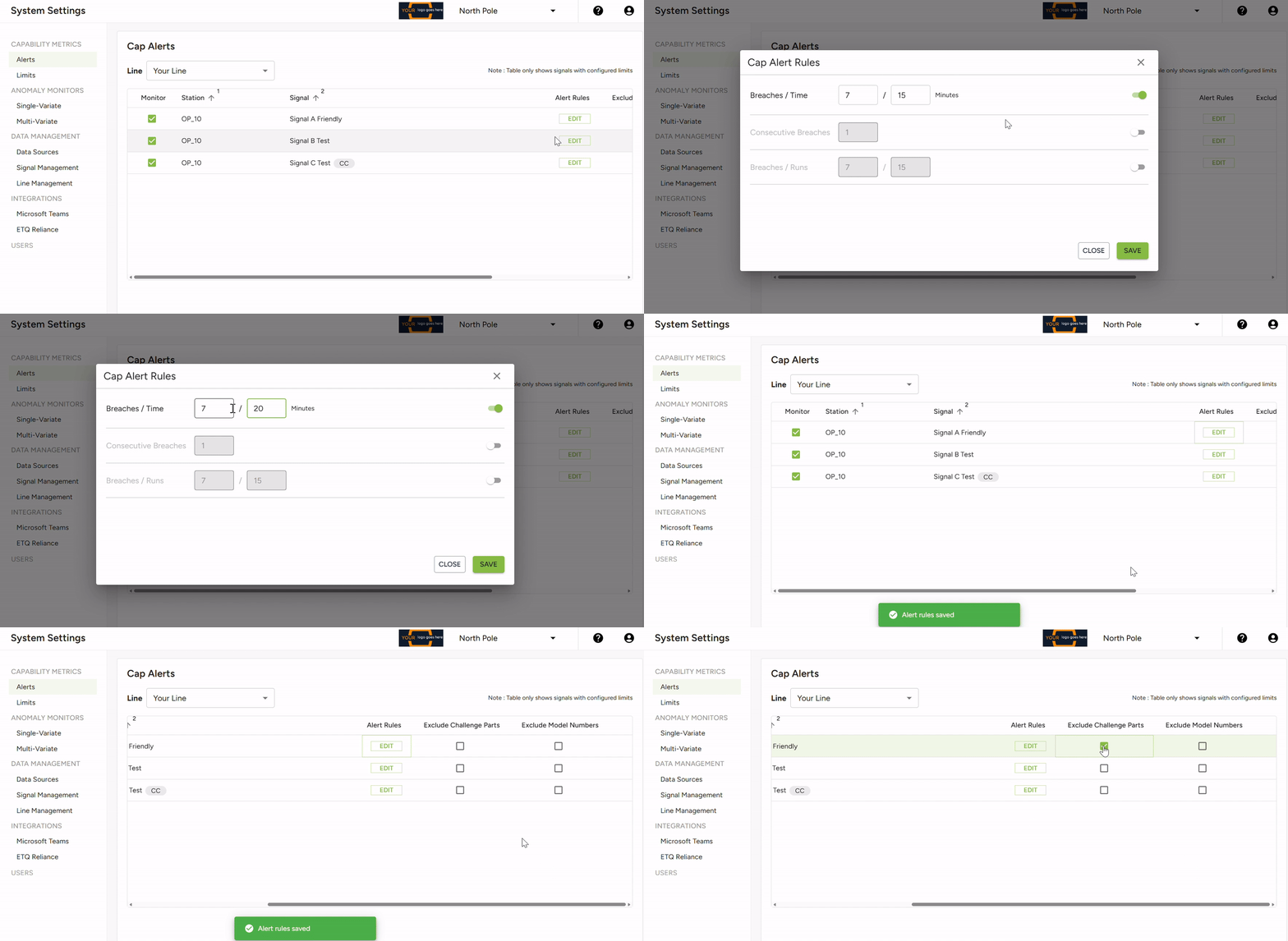
Use the Alerts settings menu to enable or disable capability metrics alerts triggered by specification or control limit breaches.
To enable or disable a Capability Metrics alert
From the Navigation menu, click .
LinePulse displays the Settings menu.
Click Capability Metrics →
Alerts.LinePulse displays the SPC Alerts worklist.
(If required) Select a Plant.
(If required) Select a Line.
Select or deselect the Monitor checkbox for the alert you wish to edit.
LinePulse enables or disables the alert.
LinePulse displays only those signals that have configured limits in the SPC Alerts table.
To exclude Challenge Parts
From the Navigation menu, click .
LinePulse displays the Settings menu.
Click Capability Metrics →
Alerts.LinePulse displays the SPC Alerts worklist.
(If required) Select a Plant.
(If required) Select a Line.
LinePulse displays only those signals that have configured limits in the SPC Alerts table.
Select the Exclude Challenge Parts checkbox.
Configure Challenge Parts in Line Management
To exclude Model Numbers
From the Navigation menu, click .
LinePulse displays the Settings menu.
Click Capability Metrics →
Alerts.LinePulse displays the SPC Alerts worklist.
(If required) Select a Plant.
(If required) Select a Line.
LinePulse displays only those signals that have configured limits in the SPC Alerts table.
Select the Exclude Model Numbers checkbox.
Configure Challenge Model Numbers in Line Management
To edit a Capability Metrics monitor's alert rules
You can only edit alert rules for monitors that are enabled.
From the Navigation menu, click .
LinePulse displays the Settings menu.
Click Capability Metrics →
Alerts.LinePulse displays the SPC Alerts worklist.
(If required) Select a Plant.
(If required) Select a Line.
Click
EDITfor the alert rules you wish to edit.LinePulse displays the Cap Alert Rules dialog box.
Click the toggle button to enable any rules you wish to include.
(As required) Enter new values in the enabled rules.
Click
SAVE.LinePulse saves your changes and closes the Cap Alert Rules dialog box.
By default, all rules are disabled and LinePulse will display an alert for any breach.
Configuring Limits
Use the Limits settings menu to configure capability metrics alert specification and control limits.
Once you have created a capability metrics alert, you may wish to enable it, then integrate it into Microsoft Teams™.
See Working with Tables for tips on sorting, filtering and resizing LinePulse tables.
To open the SPC Limits table
From the Navigation menu, click .
LinePulse displays the Settings menu.
Click Capability Metrics →
Limits.LinePulse displays the SPC Limits worklist.
(If required) Select a Plant.
(If required) Select a Line.
To view all models associated with a signal
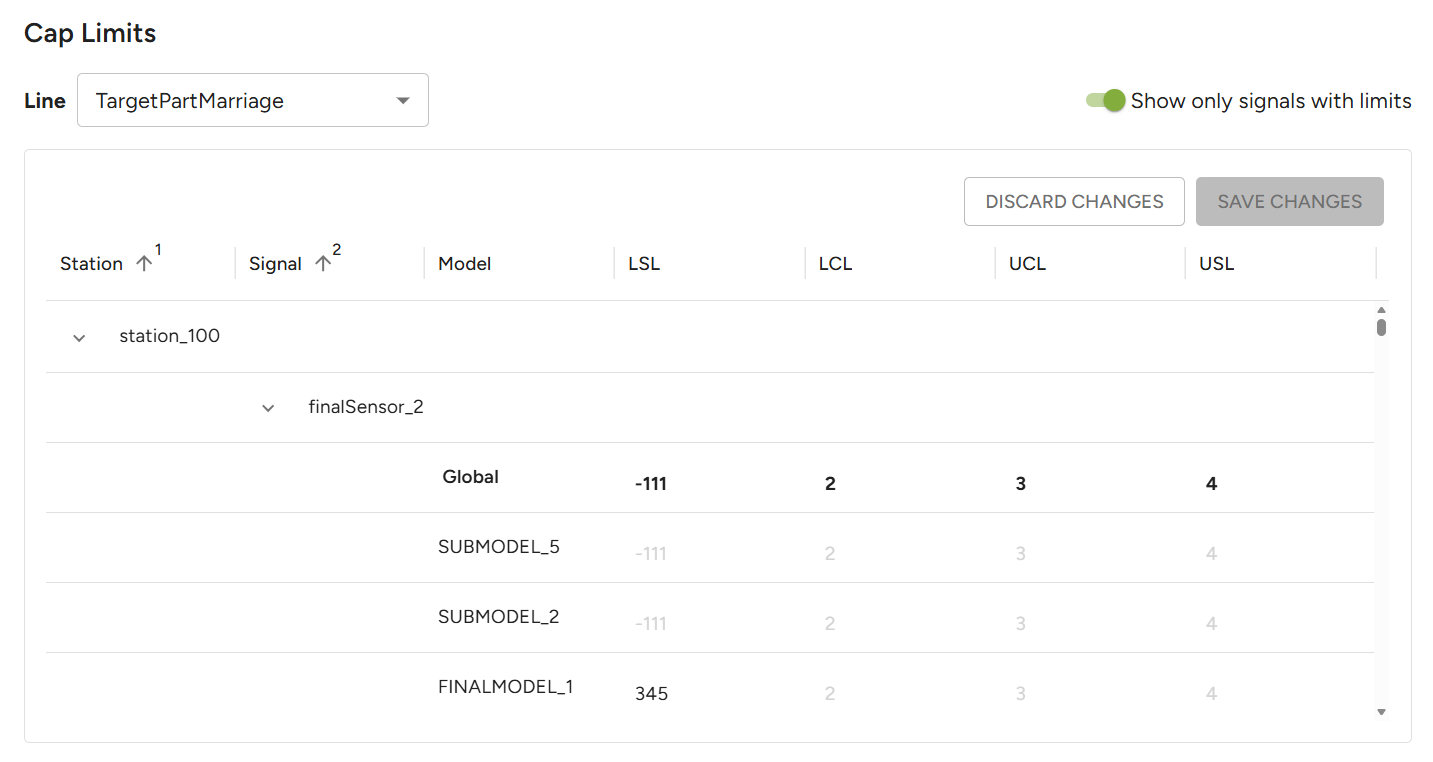
To view only signals with specified limits, select Show only signals with limits.
Click
 for the signal you wish to view.
LinePulse expands the table to display all models associated with the selected signal.
To modify limits for all models within a signal
Click
for the signal you wish to view.LinePulse expands the table to display all models associated with the selected signal.
Make any required changes to the Global row.
LinePulse updates all Models associated within that signal.
Click
Save Changes.LinePulse saves your changes.
LinePulse will not override any individually entered model values (shown in black text).
To modify limits for individual models
To view only signals with specified limits, select Show only signals with limits.
Click
for the signal you wish to view.LinePulse expands the table to display all models associated with the selected signal.
Make any required changes to one or more Models.
Click
Save Changes.LinePulse saves your changes.
If you later choose to modify limits for all Models within a signal, LinePulse will not override any previously entered Model values.