Working with Tables
Tables are an important part of how data is presented and modified in LinePulse. The information they contain can be sorted, filtered, and resized.
Sorting and Filtering Data
To sort a table
Click the up/down arrow on the column header you want to sort by.
LinePulse reorders the table, toggling between ascending and descending order with each click.
You can also sort a table by clicking any column header's  (Menu) button, then selecting SORT BY ASC (ascending order) or SORT BY DESC (descending order).
On the Part History page, pagination turns on automatically when search results exceed 2,000 records. Page navigation controls appear below the table. When pagination is enabled, Export still includes all matching data, not just the records shown on the current page, and the download may take several minutes. Sorting and filtering apply only to the current page, not across all pages.
To filter a table
For any desired column header, click
.A submenu appears.
Select Filter.
The filter submenu appears.
Select an Operator.
Enter a Value.
LinePulse updates the table to incorporate the new filter.
To add an additional filter
For any desired column header, click
.A submenu appears.
Select Filter.
The filter submenu appears.
Click
 .
A new line appears on the filter submenu.
Select And to combine the new filter with existing filters, or Or to use it as an alternative.
Select an Operator.
Enter a Value.
LinePulse updates the table to apply the selected filter.
To clear one or more filters
For any desired column header, click
.A submenu appears.
Select Filter.
The filter submenu appears.
Click
 .
LinePulse updates the table to reflect any remaining filter(s).
You can also click the (Filter) icon, which appears beside any currently filtered column header, to quickly open the filter submenu. The number above it shows how many filters are active.
Resizing Columns
To resize a table column
For any desired column, click and drag the right edge of the column header.
Release the mouse button when the column is the desired width.
LinePulse resizes the selected column and adjusts the other column positions to fit.
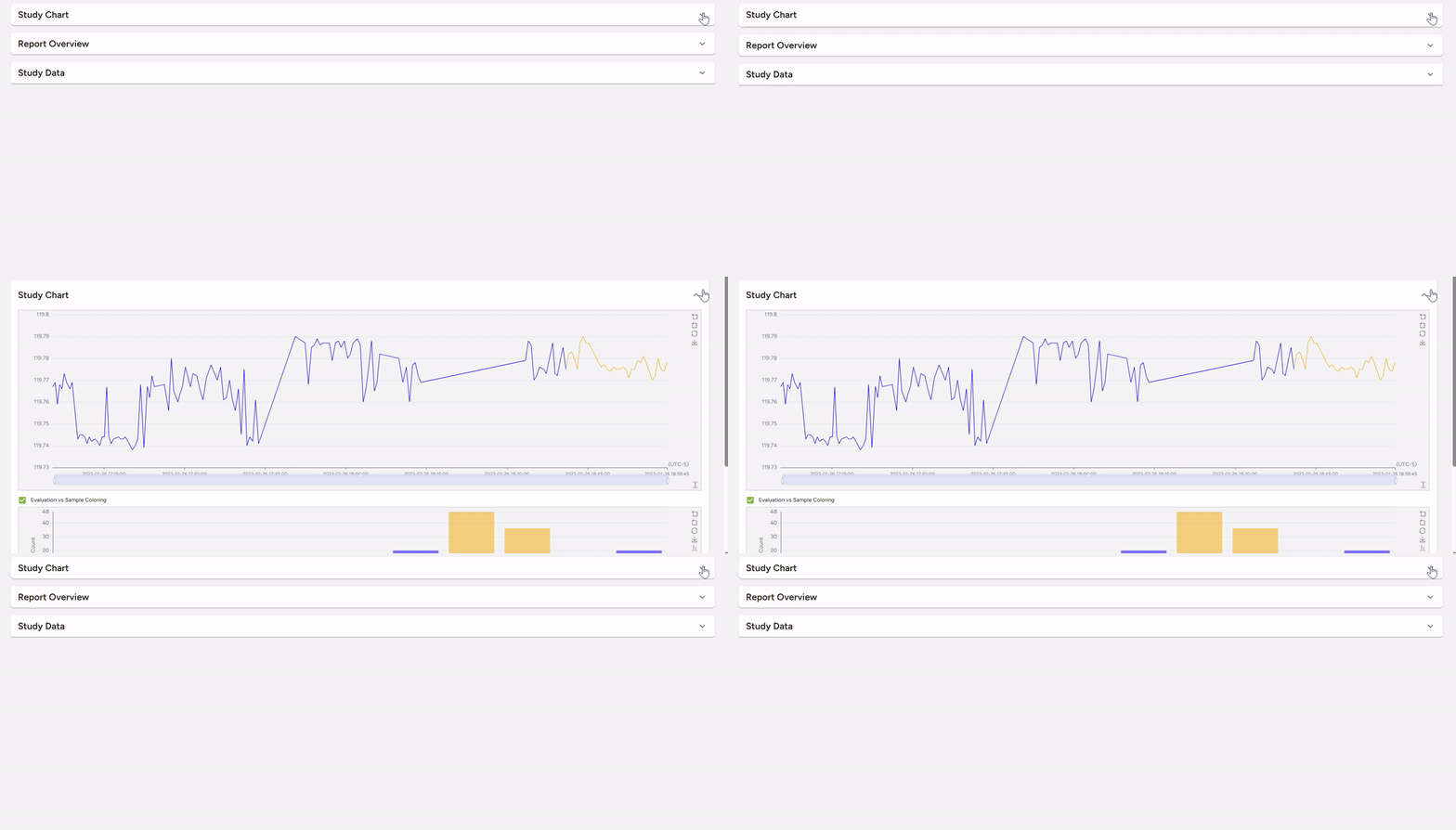
Collapsing and Expanding Tables and Charts
You can collapse or expand certain tables or charts by clicking their header. Look for the ▲ or ▼ symbols to see where this feature is available.