Capability Metrics
About the Capability Metrics Module
The Capability Metrics module allows you to run Statistical Process Control (SPC) studies.
To learn more about how LinePulse handles SPC calculations, see SPC Calculations and Definitions.
Working with Capability Metrics Queries
To create or modify a Capability Metrics query
From the sidebar, click
Capability Metrics.LinePulse displays the Capability Metrics module.
(Optional) Select a Line.
(Optional) Enter a search term.
As you type, the signal treeview will update to reflect only those values that match your search terms.
(Optional) Click
 to restrict which signals appear in the query tree.
See Working with Query Filters for more information.
Select a signal from the treeview.
LinePulse enables both the Filters tab and the
NEXT.Click
NEXT.LinePulse displays the Filters screen.
Modify the Capability Metrics query filter, or click
FETCH RESULTSto accept the default filter values.
If you have not made any queries this session, click Create Query to start a new query.
If a query is already loaded, click Edit Query at the top right to modify it or create a new one.
To modify your query, repeat the steps above. LinePulse remembers your previously entered query information until you log out.
To modify a Capability Metrics query filter
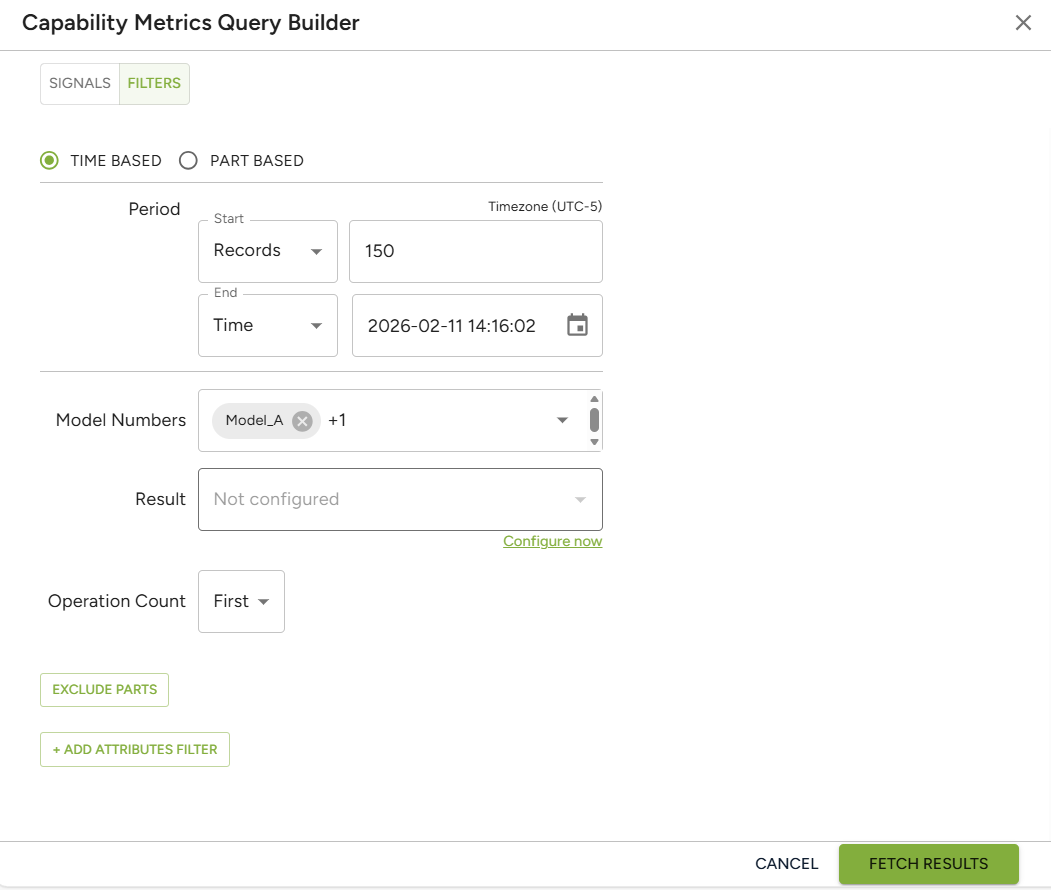
From the Capability Metrics Query Builder screen, click
FILTERS.LinePulse displays the Filters tab.
Select either Time Based or Part Based periods.
(Optional) Select one or more Model Numbers to include only specific parts in the query.
(Optional) Select Result values to include only records with the desired pass/fail or failure codes.
(Optional) Set Operation Count to determine which data points to use for each part (First, Last, or All).
By default, capability metrics queries all data points.
(Optional) Click
EXCLUDE PARTSto remove specific parts by serial number.(Optional) Click
ADD ATTRIBUTE FILTERto include specific Part Attributes.Click
FETCH RESULTS.LinePulse closes the Capability Metrics Query Builder screen.
To change display options
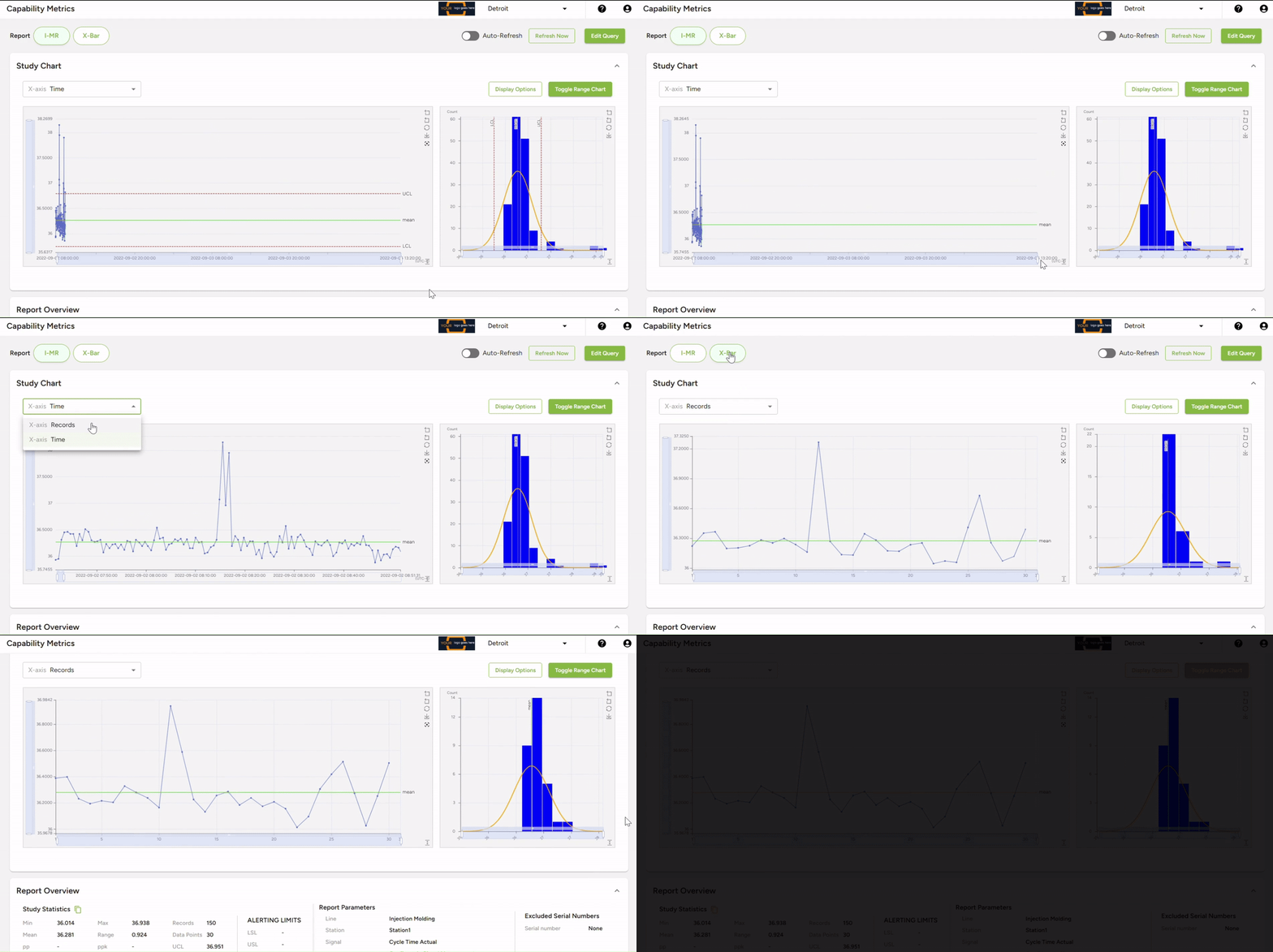
Select Report Type at the top left.
Use I-MR to display one point per serial number. Use X-Bar to smooth data by grouping multiple serial numbers per point.
Select Refresh Options.
Turn on Auto-Refresh to update data every 5 minutes, or click
Refresh Nowto update immediately.Click on
Display Optionsto add or remove graph overlays.Set Upper and Lower Limits in the system settings.
Select X-Axis View (by records or time).
Click
Toggle Range Chartto show or hide the range chart.