Line Management
The Line Management module allows you to view details and change settings for any line in your plant.
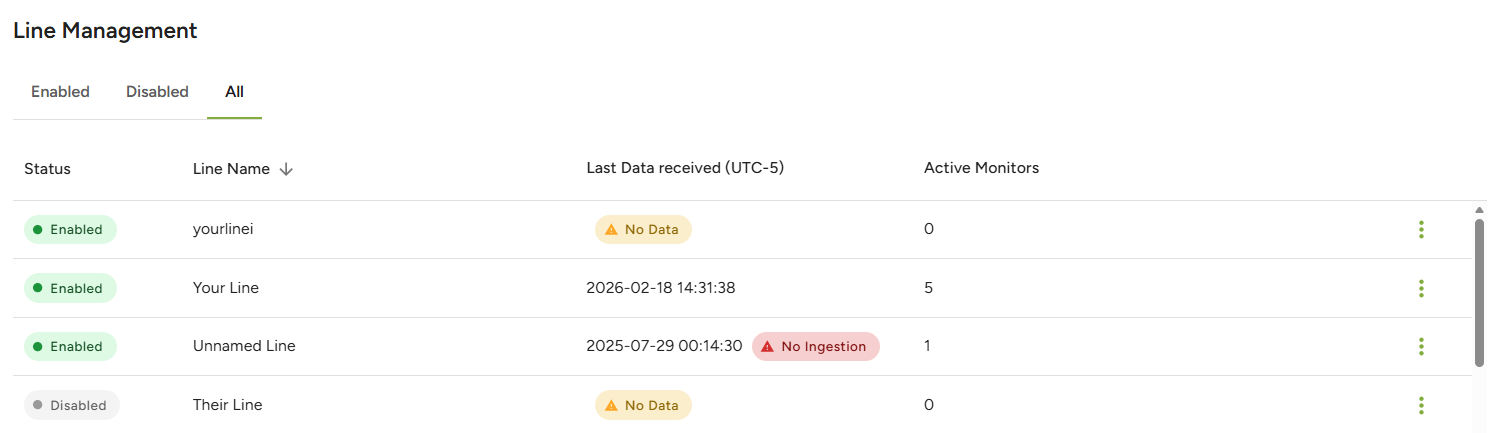
To view the Line Management screen
(If required) Select a Plant.
From the Navigation menu, click .
The Settings menu appears.
Click Data Management →
Line Management.The Line Management screen appears.
To filter the table, use the options at the top to view only Enabled, Disabled, or All lines.
To Configure a Line
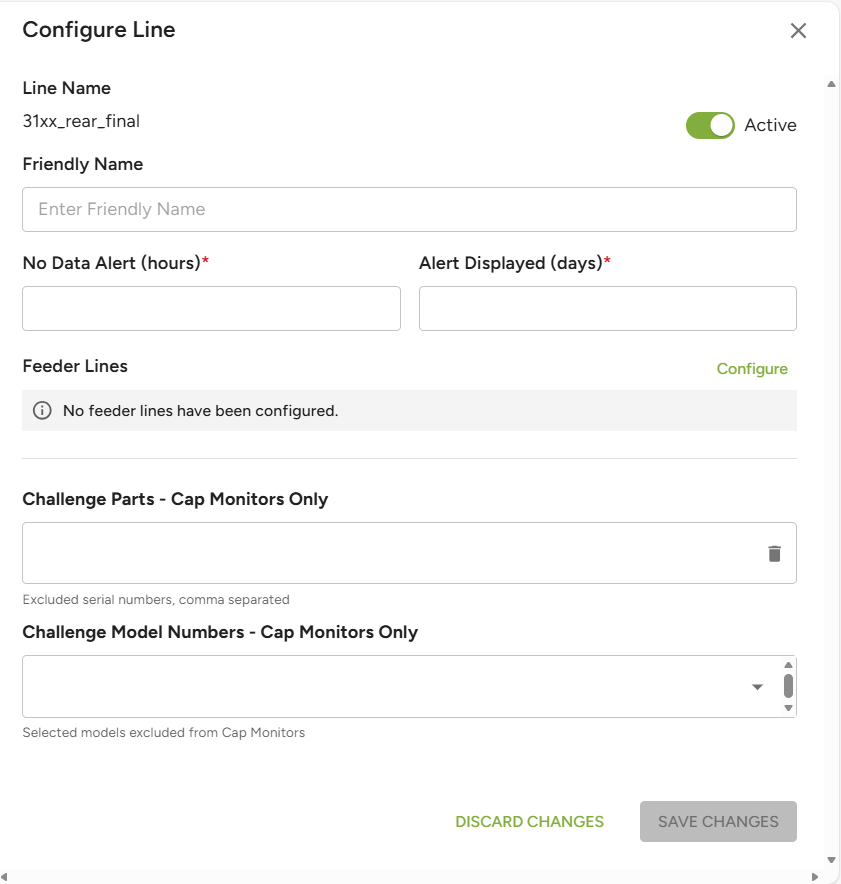
(If required) Select a Plant.
From the Navigation menu, click .
The Settings menu appears.
Click Data Management →
Line Management.The Line Management screen appears.
For the line you wish to modify, click
 .
Click
Configure Line.(Optional) Enter a friendly name.
Toggle the Active button to enable or disable a line.
Enter a new value for No Data Alert (hours).
LinePulse displays an alert in both the Overview Module and in Microsoft Teams when data ingestion stops for a line. Enter a value for No Data Alert to specify how many hours must pass without ingestion before an alert is triggered.
Enter a new value for Alert Displayed (days).
Prevent line alerts older than the Alert Displayed value from appearing in the Overview Module.
(Optional) Configure feeder lines.
(Optional) Enter part serial numbers in Challenge Parts.
This is used in capability metrics to exclude specified parts.
(Optional) Select Challenge Models.
This is used in capability metrics to exclude specified models.
Click
Save Changes.
Disabling this line will permanently delete any analysis paths where this line is the primary target and all RCA reports associated with those paths. See RCA line disabling behavior for more information.