Integrations | Microsoft Teams™
Integrating Alerts with Microsoft Teams™
LinePulse can connect with Microsoft Teams™ to automatically provide alerts to a specified group within your organization. You can create these connections for individual lines. Create a connection by following these steps:
To create a new LinePulse channel in Microsoft Teams™
Open Microsoft Teams™.
Click
Teams.The Teams list appears.
Click the
...button immediately to the right of the team you wish to add the channel to.A submenu appears.
Select Add channel.
The Create a channel for [XXXXXX] team dialog box appears.
Enter a Channel Name.
tipThe selected channel name should clearly indicate its connection to LinePulse. For example: 'Acerta Alerts' or 'LinePulse Alerts'.
Enter a channel Description.
Select the desired Privacy setting.
Click
Add.Microsoft Teams™ adds your new channel to the selected team.
To create a new workflow in Microsoft Teams™
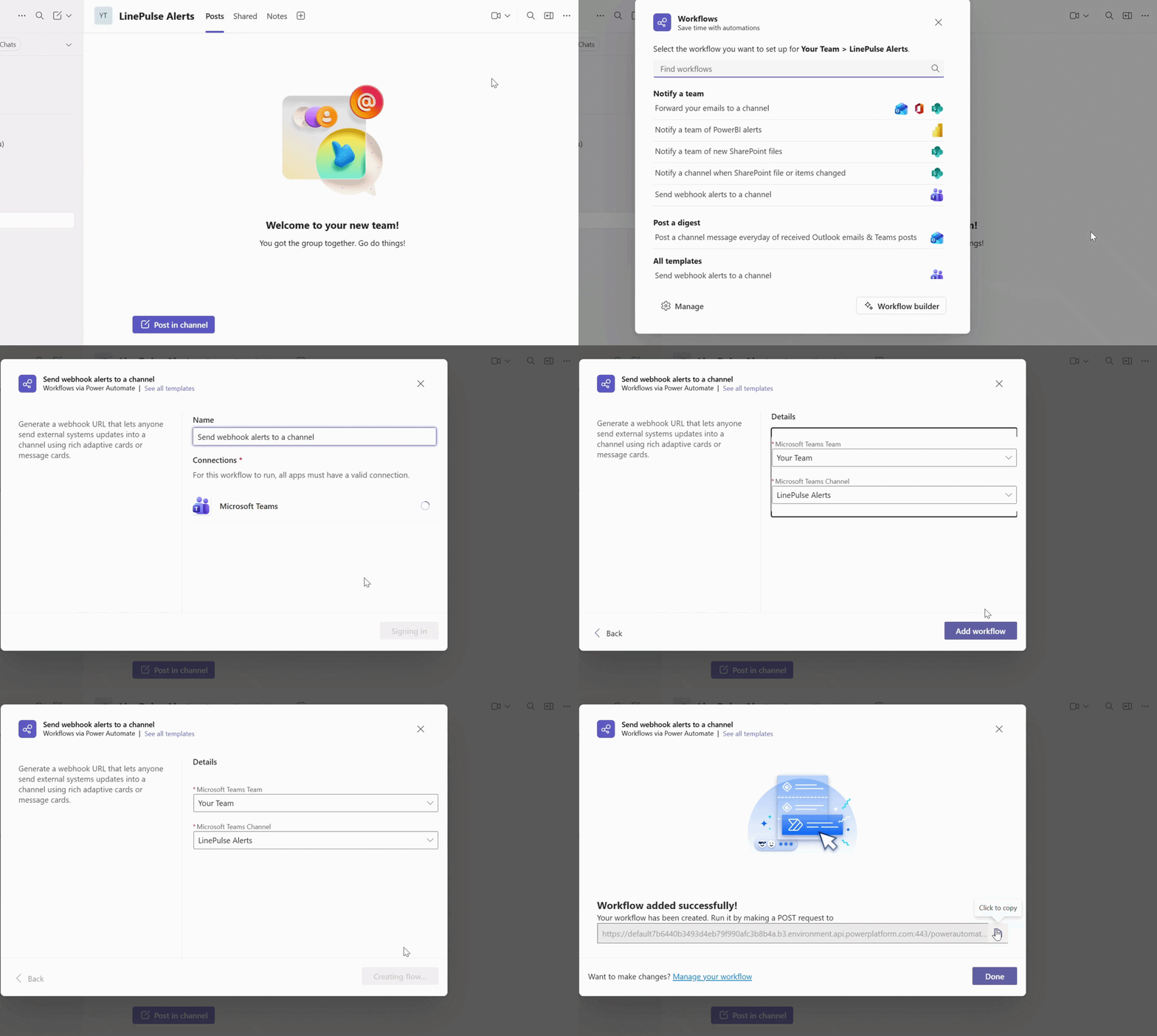
(If required) Create a new LinePulse channel in Microsoft Teams™.
Click the
...button to the right of the LinePulse channel.A submenu appears.
Click Workflows.
The workflows menu for [XXX] team → [XXX] channel appears.
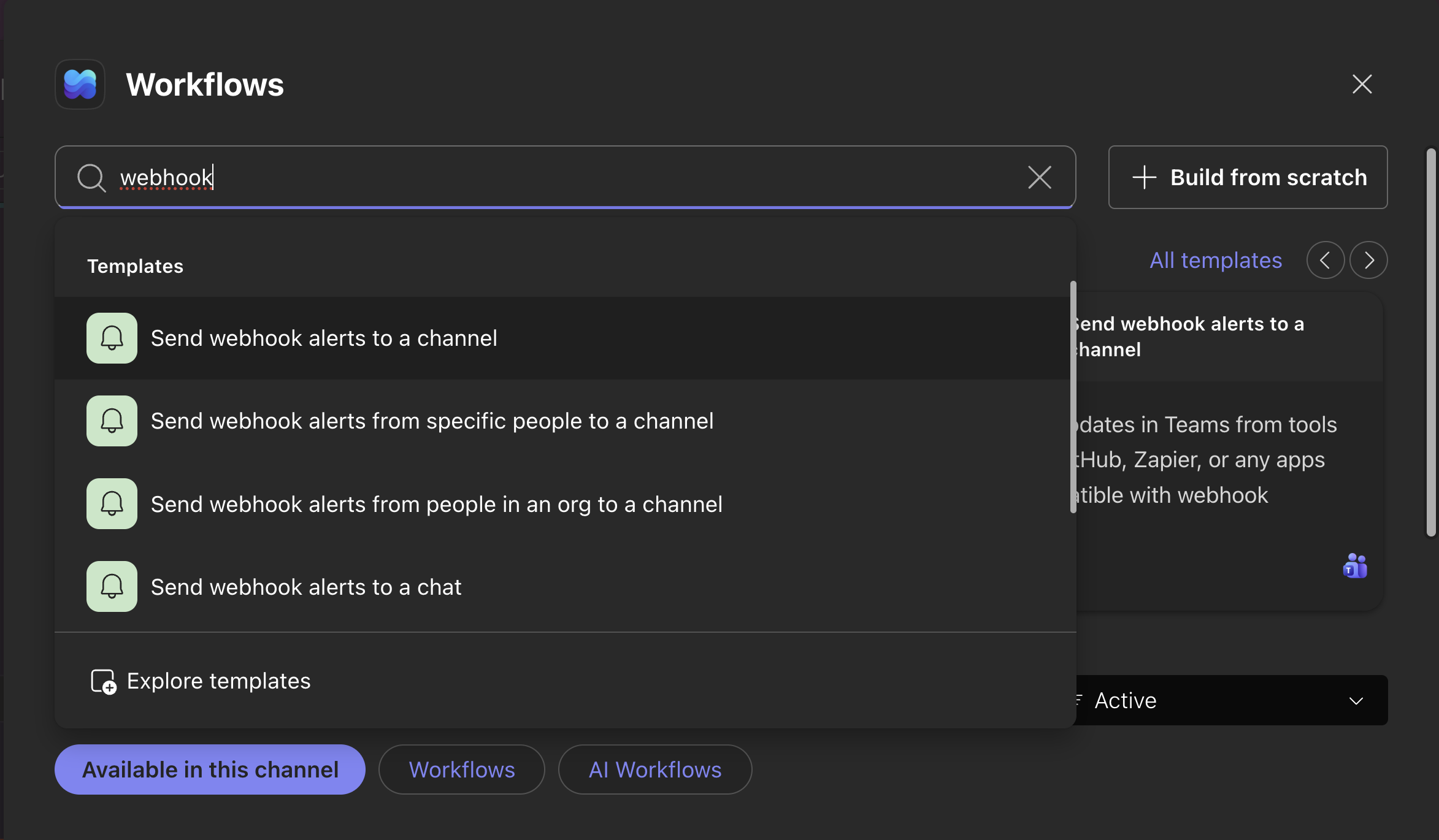
Click Send webhook alerts to a channel.
Microsoft Teams™ verifies your connection.
With the new workflows UI, you may have to type webhook into the search or scroll through the templates to find it.
Click the
Next.It may take some time for the page to load.
(If required) Select the correct team and channel.
Click the
Next.Copy the URL.
You will need this to complete the connection between Teams and LinePulse.
Click the
Done.You are ready to add the connector URL to LinePulse.
To connect a line in LinePulse to Microsoft Teams™
In LinePulse:
(If required) Create and configure a new LinePulse channel in Microsoft Teams™.
(Once you have copied the connector URL into the Windows clipboard), from the Navigation menu, click .
The Settings menu appears.
Select Integrations → Microsoft Teams.
(If required) Select a Plant.
LinePulse updates the list of available lines for the selected plant.
Click
 for the line you wish to connect to Microsoft Teams™.
The Webhook URL text entry box appears.
Paste the Webhook URL into the text box.
Click
CANCELif you decide not to create or modify the Webhook URL at this time.Click
 .
LinePulse creates the Microsoft Teams™ connection.
Following a successful integration, you will receive a test alert from Acerta in your Teams channel.