Integrations | ETQ Reliance™
LinePulse can connect with the ETQ Reliance™ QMS platform to automatically provide alerts within that application. The connection is bidirectional: rank monitor alerts are sent by LinePulse within ETQ Reliance, and LinePulse will incorporate those—and any further alerts—to accurately calibrate the alert's rank, which is visible from the Breaches screen.
Linking LinePulse with ETQ Reliance™
To connect a line in LinePulse with ETQ Reliance™
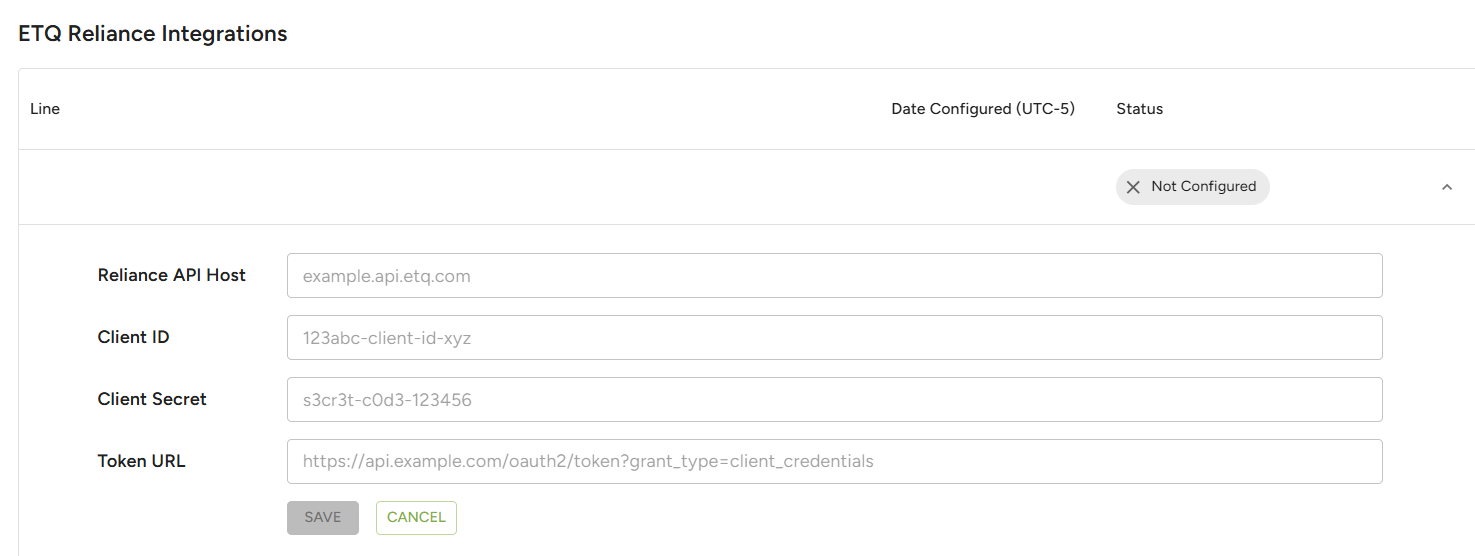
Connections that have been previously configured will display a Status of 'Configured', while unconfigured lines will display a Status of 'Not Configured'.
From the Navigation menu, click .
The Settings menu appears.
Select Integrations → ETQ Reliance.
(If required) Select a Plant.
LinePulse updates the list of available lines for the selected plant.
Click
 for the line you wish to connect to ETQ Reliance™.
LinePulse expands the line to display connection options.
Enter the Reliance API Host.
Enter the Client ID.
Enter the Client Secret.
Enter the Token URL.
Click
SAVE.LinePulse creates the ETQ Reliance™ connection and changes its Status to 'Configured'.
The following fields can be obtained from the ETQ Reliance Integrations Team when setting up the platform.
To edit an ETQ Reliance™ connection
Connections that have been previously configured will display a Status of 'Configured', while unconfigured lines will display a Status of 'Not Configured'.
From the Navigation menu, click .
The Settings menu appears.
Select Integrations → ETQ Reliance.
(If required) Select a Plant.
LinePulse updates the list of available lines for the selected plant.
Click
for the line you wish to edit.LinePulse expands the line to display connection options.
Make any required changes.
Click
SAVE.LinePulse updates the ETQ Reliance™ connection.
To delete an ETQ Reliance™ connection
From the Navigation menu, click .
The Settings menu appears.
Select Integrations → ETQ Reliance.
(If required) Select a Plant.
LinePulse updates the list of available lines for the selected plant.
Click
 for the line you wish to delete.
A confirmation dialog box appears.
Click
OK.LinePulse deletes the ETQ Reliance™ connection.