Alerts | History
Using the History Module
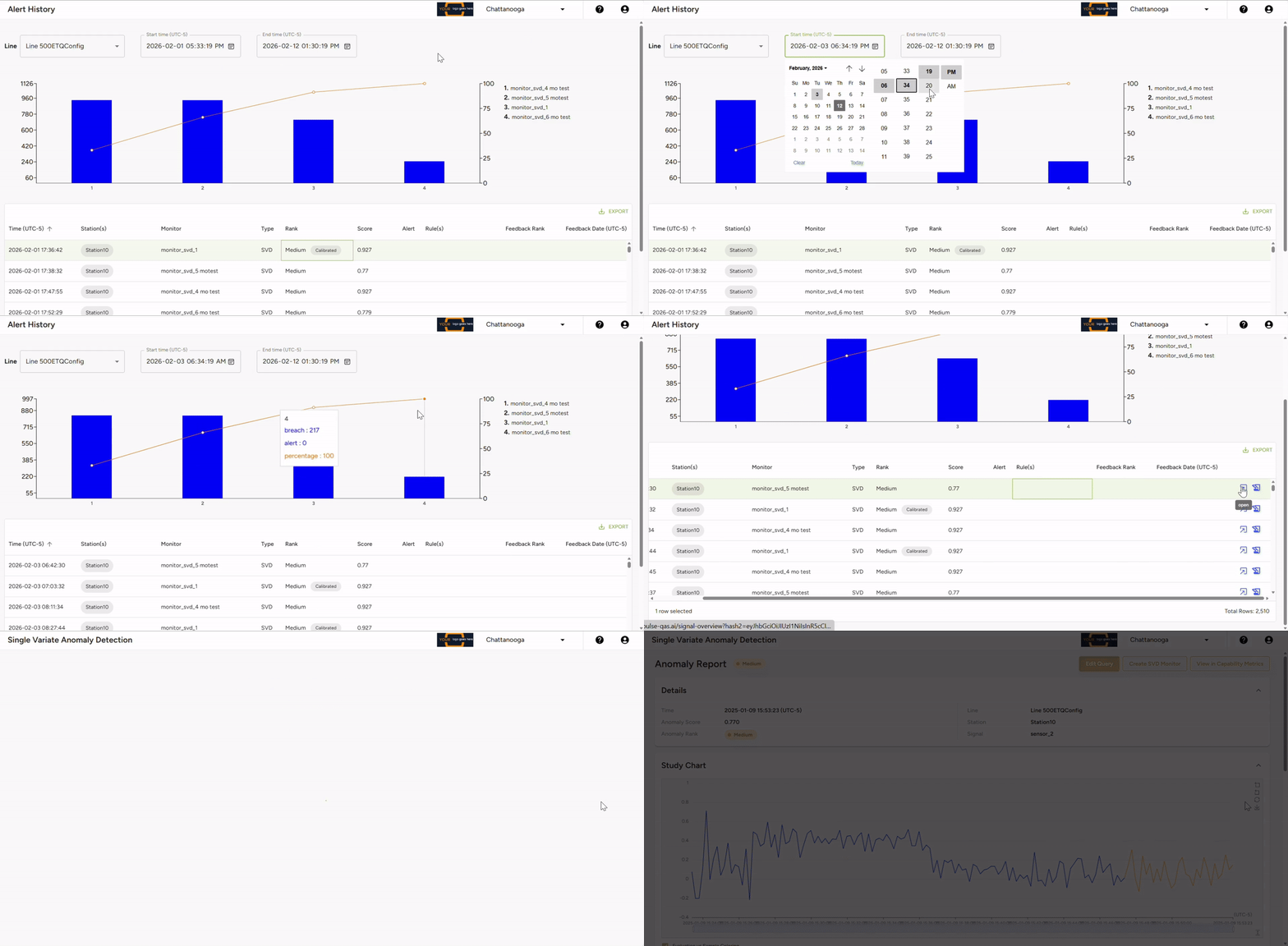
To select History list parameters
With the History module loaded:
(If required) Select a Plant.
(If required) Select a Line.
Select a Start time.
Select an End time.
To export the History list
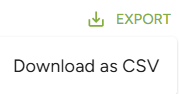
(If required) Select History list parameters.
Click
EXPORT.A submenu appears.
Click
Download as CSV.LinePulse saves the exported History list file to your default download folder.
To view an alert history in a new browser window
(If required) Select History list parameters.
For the desired alert, click
 .
LinePulse opens the selected alert in its corresponding module in a new browser window.
To view a monitor run history
(If required) Select History list parameters.
For the desired alert, click
 .
LinePulse opens the selected alert in the Monitor Runs History module in a new browser window.
Integrating Alert History with Microsoft Teams™ (Admins)
LinePulse can connect to Microsoft Teams™ and automatically provide alerts to a specified group within your organization. See the Integrations module to learn how to create or modify this connection.